In this area, you will find a summary of all default settings for the project documents.
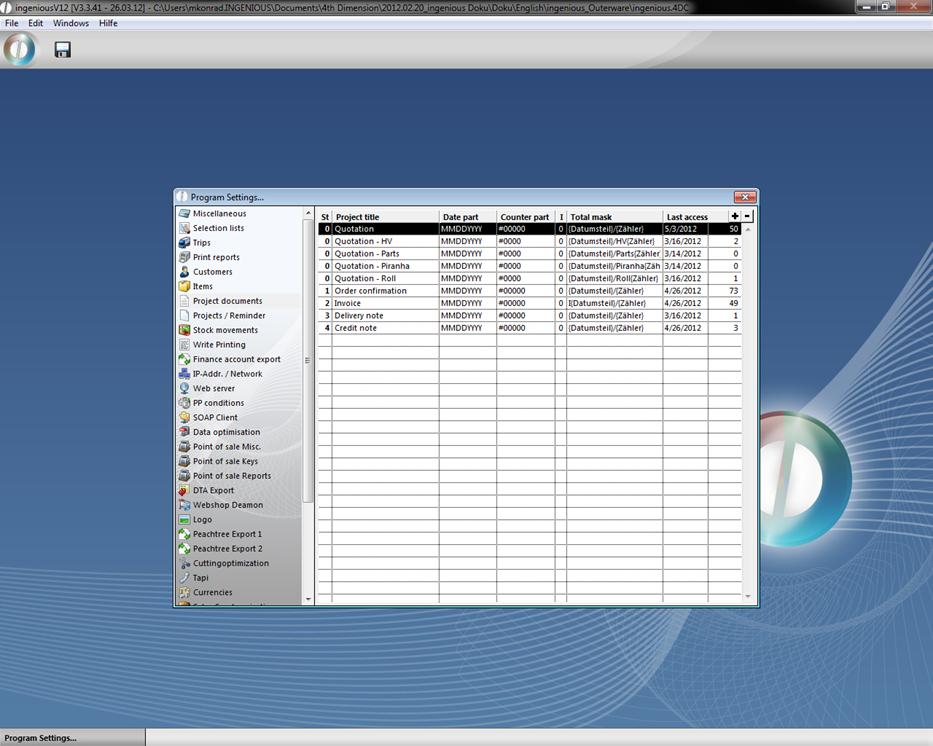
With the  button, you can create new default settings for a project document, or delete
  them. You can also change the existing status. You will learn everything about this in the following exercise
Creating a project document
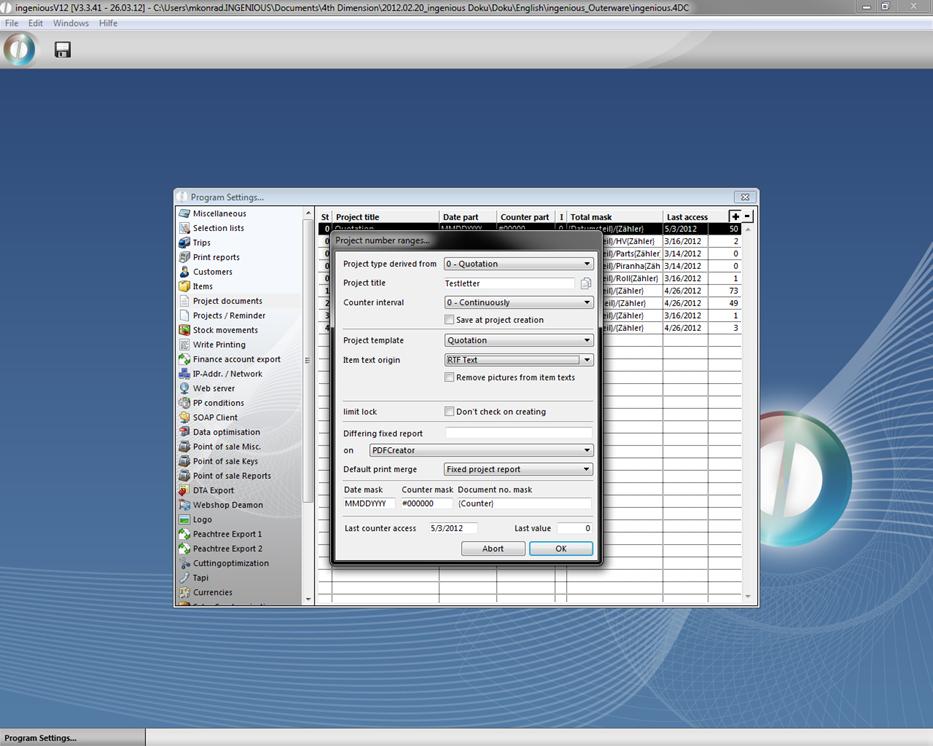
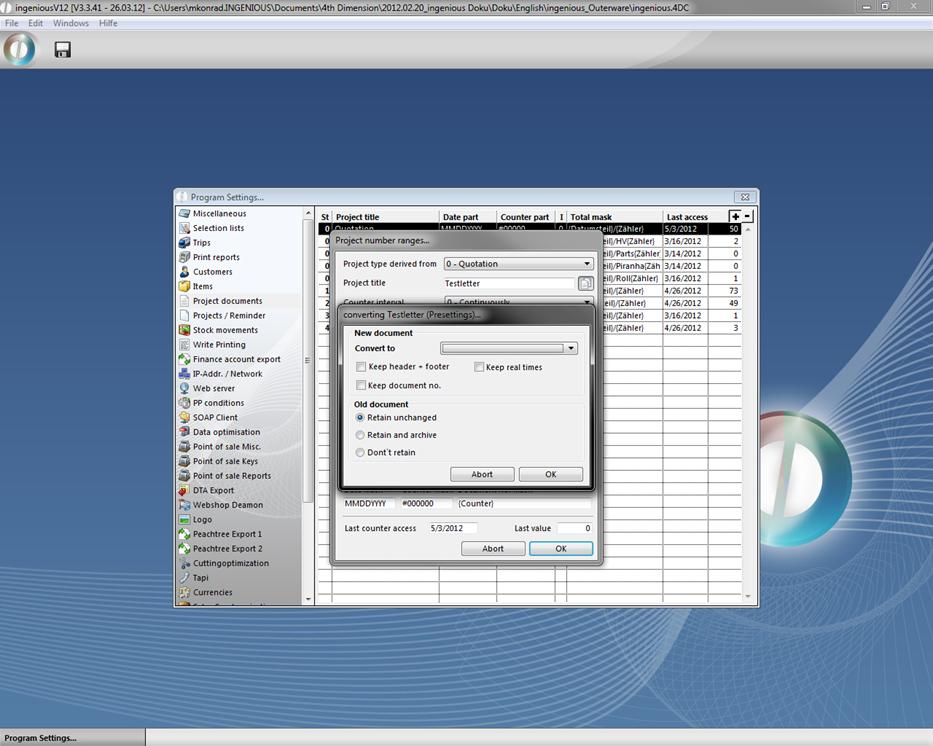
When you create a new project document, you must determine from which other project document it should derive. With the  button “Forward default settings for project status” you can determine which default settings should be kept in case you forward the project. A window opens, where you can determine that when forwarding a project, real times, document number as well as header and footer should be kept as standard. Furthermore, you can determine what should happen with the old document. These settings also can be changed again when forwarding the project.
The project documents in Ingenious.V12 will be numbered in a user-defined manner. You can select between four intervals - “Continuously”, “Yearly”, “Monthly” or “Daily”. You hereby determine when the document number should start again with 1. By using this method, you always have an oversight of how many projects were created in the set interval with the respective number. In “Item Text Origin” you have the choice between the options “ASCII Text” and “RTF Text”. When there are pictures stored that should be displayed with the offer, select “RFT Text”. “ASCII” cannot display pictures. That is only possible with RTF texts. For this example select “RTF Text”. For single documents, you can use this setting and change it in the “Parameter” column of the respective document. With the selection field, “Remove pictures from item texts”, you give the instruction to delete stored article images from RTF texts. With the setting “Built-in word processing” the project documents will be printed in the built-in word processing. Here a printout is only possible in a detailed image. It is somewhat more professional to use the setting “Fixed project report”. For companies that have to print several hundreds of project documents simultaneously from a list, the setting, “Fixed project report” is the most expedient. Single documents always will be printed with the built-in word processing. The adaptation of fixed documents requires programming work. In that case, you can contact Ingenious GmbH.
With the field “Template date”, you can set any date format. “Y” stands for year, “M” for month and “D” for day. However, not all combinations of the three letters make sense.
Examples of combinations
“DDMMYYYY” 12022007
“DDMMYY” 120207
“MMYY” 0207
In the “Counter mask” field, you determine how many digits the counter should have. The field “Document no. mask” gives you the possibility to reproduce date settings and counter numbers in any combination (also with texts). Simply enter the placeholder “{Date section}” and “{Counter}” separated by “/”.
Changing and deleting a project document
In order to make changes in a document already created, double-clicking on the document is sufficient to open the standard window with all the document settings, and here you can make any changes necessary. In order to delete a document, simply mark the document in the list with a mouse-click, and then click the button. In order to be certain, an inquiry window appears which you confirm with the “OK” button.